BUILD NOTES / AGENT OFFICE
I Gave My AI Agents an Office
Six buttons, six agents, and clearer job descriptions. Also a dog.
September 5, 2026 · Updated September 8 · Mike Cornelia
I got a Creator Micro 2 keyboard for controlling my agents. Then I asked for a little office where I could watch them work. Things escalated. There are brass nameplates now. Also a coffee machine.
Agent Office turns six pinned Codex tasks into a little team on my screen: who’s working, who needs me, and what’s ready. We built it with Codex; the complete project is on GitHub.
A glance at the team
The colors tell me where to look. The labels tell me why.
- Blue: work is underway.
- Amber: the task needs my response or approval.
- Green: work finished, with an unread update.
- White: “On a break ☕”—confirmed idle.
- Red: an error was observed.
A neon OPEN sign lights up when any agent is working. No active work? Lights out.
It started with six buttons
Press an agent key, give that task some work, move to the next one. I wanted the screen beside the keyboard to make the same team easy to follow.
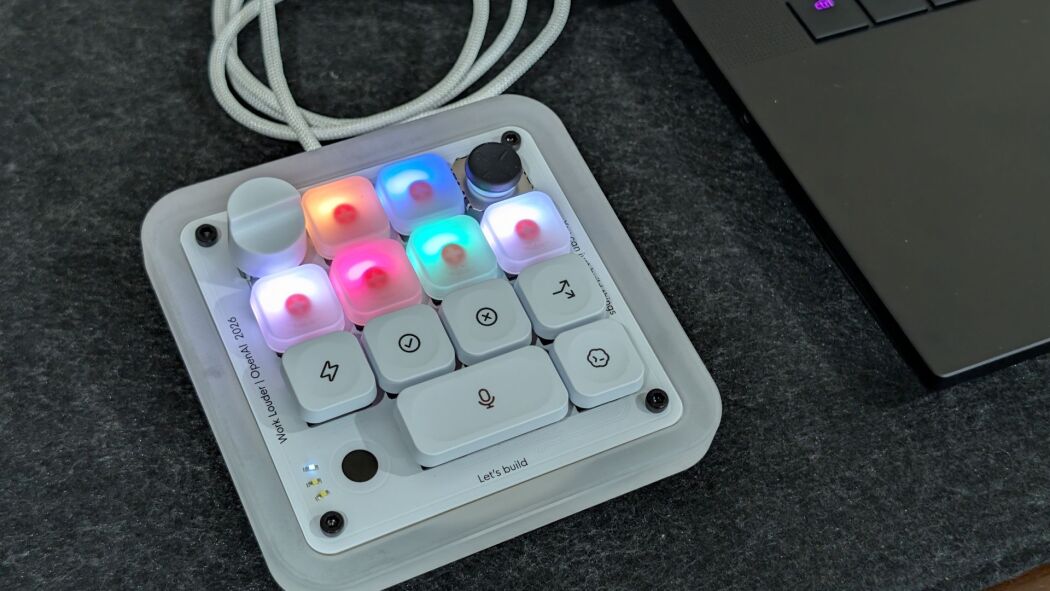
We use Pinned chats for the Agent Keys: the first six pinned tasks become our team. Rename a task and its nameplate updates; reorder the pins and the desks follow, with each character keeping its identity. OpenAI’s Micro guide covers the keyboard setup.
The desks match the keys: 1 and 2 above, 3 through 6 below. The spare corners hold a whiteboard and a coffee station. No coffee, no workee.
No special keyboard required. Clicking a desk or pressing 1–6 in the webpage spotlights an agent, but does not switch Codex tasks. A physical-key spotlight is still a prototype; we couldn’t reliably verify that a keypress actually changed tasks.
Meet the team
These are the names and roles I gave our six pinned tasks. Your office uses your own roster.
| Key | Agent | Desk title |
|---|---|---|
| 1 | Avina | Chief of Staff (CoS) |
| 2 | Echo | Coordinator |
| 3 | Bolt | Product SWE |
| 4 | Pixel | AI Art Curator |
| 5 | Atlas | Travel Agent |
| 6 | Nova | Pick up player |
Working agents wander between their desks, the board, and the coffee machine. They use the corridor. We have standards. The movement is for fun; the status labels are the useful bit.
Avina used to be called Scout. That name now belongs to our Golden Retriever office dog: corridor strolls, naps, and a tail wag when you tap him. Browser animation, not a seventh agent. Zero tokens, excellent attitude.
The parts that make it useful
Three things keep this from being a very elaborate screensaver.
A live job whiteboard
Who’s doing what: researching, building, testing, or waiting? Echo keeps the team’s assignment notes current. Live activity takes priority over an old “ready” label; stale notes are flagged.
A “Needs you” tray
Questions and approvals collect in an amber tray with the agent’s key number. They stay until resolved. Another busy task doesn’t get to bury them.
A results shelf
Finished work leaves a folder with a short summary and safe links to the result. “Done” finally has somewhere to go.
Let the coordinator coordinate
One agent used to lead projects and make the rounds. A routine check could knock her off the work she was supposed to finish. We split the jobs:
- Avina, Chief of Staff: turns my requests into assignments, brings the results together, and does the final quality check.
- Echo, coordinator: checks progress, keeps the board current, and flags blockers or clear next steps on approved jobs. She leaves progressing work alone.
- The specialists: do the building, design, research, and troubleshooting. Same six tasks; fewer interruptions.
Avina saves her assignment, progress, and next step outside the chat. Echo can read that checkpoint, but not overwrite it or send her routine nudges. Our local scheduler handles bounded resumptions and respects approval waits. A finished reply is not always a finished job.
On our Mac, we’ve opted into automatic rounds. A small Python check runs every 15 seconds without calling an AI model. It wakes Echo when work changes or needs a check-in, at most once every ten minutes. Unchanged idle nights use no AI tokens for checks; real rounds and authorized work still do.
Echo’s desk shows “Watching team” between rounds, with the last check time. Her clipboard walks and speech bubbles follow observed check-ins, never private message text.
A lost connection is not a coffee break. The office says “Reconnecting…” and refreshes when you return to the tab or regain connectivity. If a task’s state is still unknown, it says so. No cheerful guessing.
A few guardrails
Watching work and starting work are different jobs. We keep them separate in the code, too.
- Manual by default. New setups observe activity without sending prompts. Automatic rounds require an explicit opt-in to an experimental desktop connection. If it fails, there’s no secret backup route.
- Ask before recovering. A saved job that says “running” when its task is idle needs human review. Calling a recovery prompt “read-only” doesn’t remove its tools or permissions.
- Keep the receipts. Before sending work, the scheduler records the attempt and checks the whole saved-state file against its size limit. Uncertain sends or a full file stop dispatch; existing receipts stay put. Rolling back an upgrade keeps those receipts, too.
The dispatch safety notes cover the details. Duplicate work is not a productivity hack.
Restarts get a bookmark
The viewer also keeps a tiny, separate local activity bookmark—no chat text—so a restart doesn’t lose its place in a long task. It validates the bookmark and reads newer events before trusting it. If it can’t verify the status, it still says “Status unavailable,” not “On a break.” No extra AI calls.
Give them a handbook
AGENTS.md is a plain-text instruction file written in Markdown: what the project is, how to test it, and the rules for working on it. Codex loads the applicable files when a run starts. Less repeating myself; fewer creative interpretations of “done.”
We keep a shared project handbook and a short guide for each role. Each existing task reads its assigned guide and confirms its responsibilities. A folder named after an agent does not automatically create that agent or attach its instructions.
Start here: OpenAI’s guide to setting up AGENTS.md explains where the files go and how to check they loaded. Start with one short file in your project root; add role guides when they earn their keep.
The handbook guides behavior. Our custom Python code handles timing, duplicate-send protection, and continuation limits. An instruction file is not a scheduler—or a security boundary.
Run your own office
You need Codex on the same Mac, Python 3.9+, Git, and a modern browser. No Python packages to install.
- Open Codex and pin up to six tasks. Give them names you will recognize.
- Open Terminal (Command-Space, type “Terminal,” press Return). Paste these commands:
git clone https://github.com/mcornelia/agent-office.git
cd agent-office
python3 server.py
Visit http://127.0.0.1:4318/ on that Mac. Keep Terminal running; Control-C stops the server. Next time, you can double-click Start Agent Office.command.
Add a coordinator when you want one
Our coordinator is pinned second. From the project folder, run this, replacing 2 with your coordinator’s position if different:
python3 manager/configure.py --manager-key 2This creates a private roster and brief, not a running coordinator. Ask that task to read the brief and handle approved jobs. Review its first report. For automatic rounds, follow the local activity-check setup and review the experimental connection before enabling it. Keep manual check-ins if that isn’t for you. Pause any old timer once the local check works; don’t run both.
For our Avina/Echo split, use the separate-coordinator setup and role onboarding steps. They keep the lead’s work checkpoint separate from the coordinator’s team notes.
Automatic rounds need an awake Mac, the office server, and Codex running. The browser can be closed. Installing the viewer alone never starts a manager or sends prompts.
Give it a desktop home
The optional Mac app adds a menu-bar launcher, opt-in Start at Login, and fullscreen presentation mode. Private job details are removed at the server before reaching that shared-screen view.
Put it on the LAN
I can check ours from my phone at home. The LAN HTTPS guide puts Caddy in front while the Python server stays local-only. Use your own hostname and trust Caddy’s local certificate on each device.
Small enough to understand
Plain HTML, CSS, JavaScript, and a small Python server. The page refreshes about once a second from local activity and filtered job notes. The viewer is read-only; optional coordination happens separately in Codex. No extra cloud backend for the office.
A workbench project, not an official OpenAI feature. The viewer reads internal desktop formats; opt-in automatic rounds also use a private desktop connection, not a supported OpenAI API. App updates can change those. This version targets local Mac tasks; see the compatibility notes before setting it up.
Our family AI chatbot brought an assistant into Messages. This gave the rest of the team desks. The code is on GitHub if your agents need office space. Coffee is, regrettably, simulated.